


In the sports hall, while my nieces are at training, I often keep working on my laptop — the training times usually fall at the end of my workday, and driving home in between would be wasted time. Between the exercises, the parents stand around together. At some point recently, someone I know asked me: "Have you ever written a blog post for beginners?" She meant Claude — because in our conversations, I keep telling her I prefer Claude to ChatGPT, and she still uses ChatGPT.
No, I hadn't. So here it is — the introduction for everyone who hasn't used Claude yet. With or without any prior AI experience.
I've been using Claude for a few years now. I started with the Claude Desktop app on the free plan. Later, a work account was added, because I use Claude intensively for my job. Before that, I had used ChatGPT — I switched back then because Claude simply gave me better answers. Today, I use Claude exclusively.
This isn't a benchmark analysis. It's the perspective of someone who has this thing in daily use. Most of what I'm about to tell you came out of that — from everyday life, not from a test lab. One note up front: What I recommend as a starting point isn't necessarily what I use myself every day. More on that later. For now, it's about what you need to know to even get started.
What Claude Is
Claude is a chat assistant. You type a question, Claude answers. You can follow up, refine, change the topic — like a conversation, but with a computer program that has learned from very, very many texts. If you know ChatGPT, you know the principle. The company behind Claude is called Anthropic, based in the US.
What makes that different from a search engine like Google? Google shows you a list of links where you might find the answer. Claude formulates an answer itself — in full sentences, tailored to your specific question. That's convenient, but it also means: You have to read Claude with a different kind of critical eye than you would a source webpage. More on that below.
Where You Can Use Claude
Claude is available in four places:
- In a web browser at claude.ai — that works anywhere, no installation needed. I only use it rarely myself, usually when I want to export a chat as a file.
- As a desktop app for macOS and Windows. This is my recommendation for getting started. The app is simple, stable, and you save yourself the browser window.
- As a mobile app for iPhone, iPad, and Android devices. Useful for moments when you're not at your computer — on the couch, in the kitchen, on the train. I use the mobile app regularly when my laptop is closed.
- Claude Code — this is a tool for developers, available both for the terminal and as a "Code" tab directly inside the Claude Desktop app. The tab only appears in the desktop app if you're on a paid plan (Pro or higher) — in the free plan, you won't see it. I'll mention it briefly at the end of this article because it's my personal main tool.
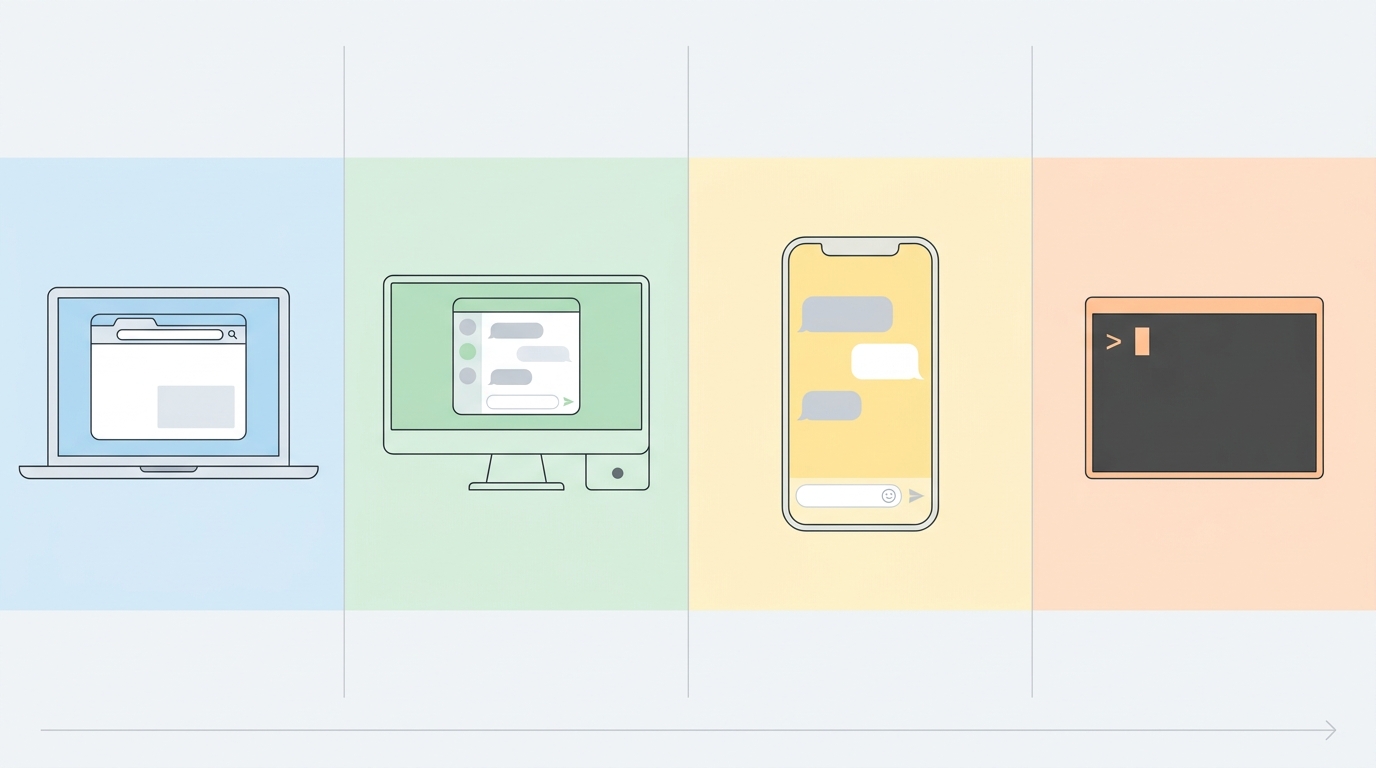
For getting started: Download the desktop app. The rest comes later.
What the First Conversation Feels Like
When you open Claude for the first time, you see an empty text field waiting for your first input. You type your question, press Enter, and Claude answers.
That's it. No account-setup marathon, no configuration menu. You just talk.
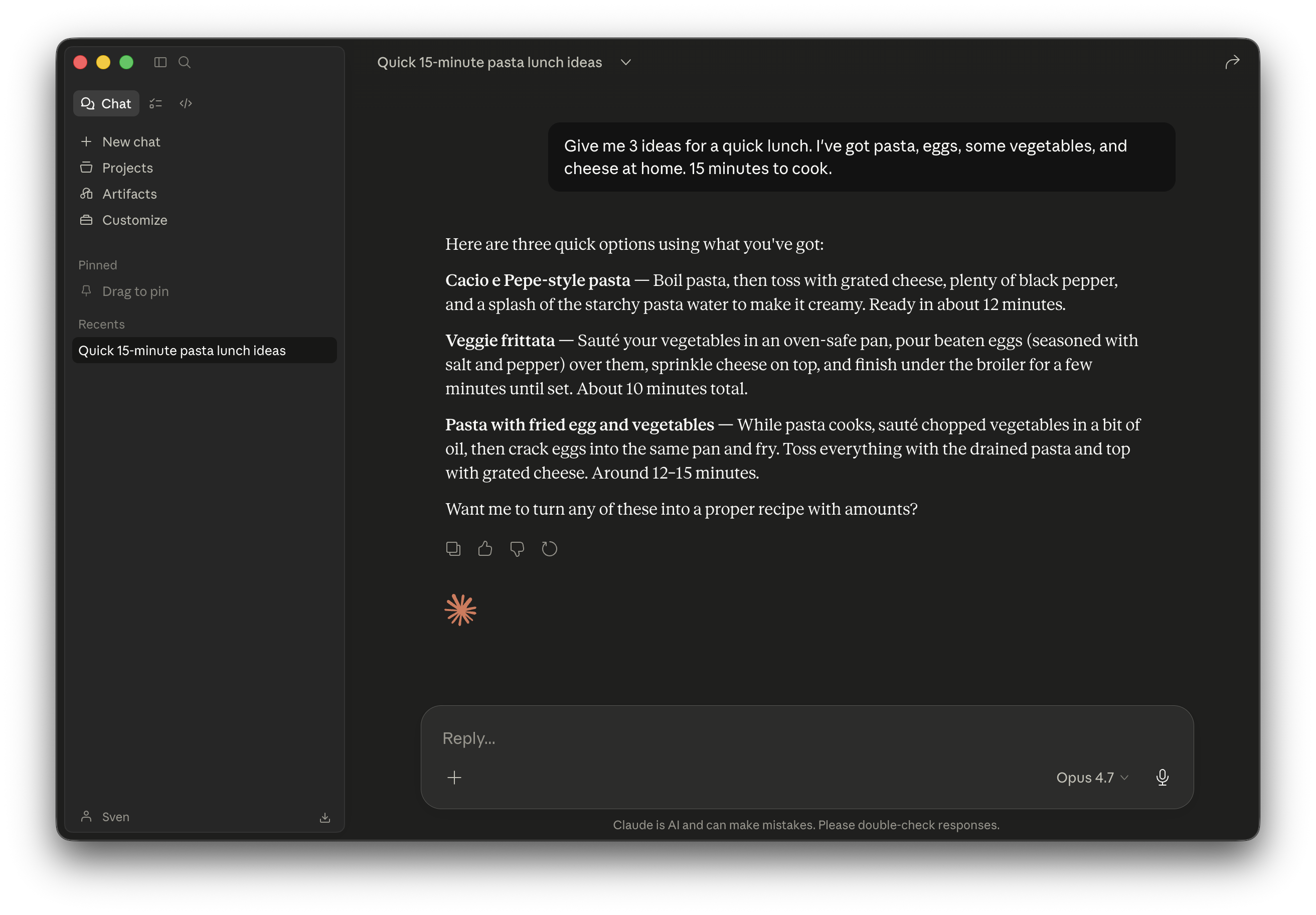
If you've used ChatGPT before: at its core, this works exactly the same way. Only the style of the answer feels different. More on that further down.
Account and Plans
Claude has five plan tiers (details and current prices at claude.com/pricing):
- Free — no cost, for getting started and trying things out. Limited number of messages per day, but enough to get a feel. This is where you begin.
- Pro — monthly subscription, currently around 17 US dollars per month on annual billing, 20 on monthly. More messages, access to a more capable version of Claude, and two additional tabs in the desktop app: Cowork (more on that below) and Claude Code. If you notice you're using Claude regularly, the upgrade is worth it.
- Max — for very intensive users. Costs noticeably more, but also provides correspondingly more capacity. You won't need this as a beginner.
- Team and Enterprise — these are company subscriptions. If you're starting out privately, this isn't a topic.
Recommendation: Sign up for the free plan. Try Claude out for a week. If after that week you realize you want more, switch to Pro. Everything else sorts itself out later.
How You Talk to Claude
The good news: You don't need to learn any magic formula. Anthropic — the company behind Claude — recommends in its official getting-started documentation that you talk to Claude as if you were talking to a coworker or a friend: naturally and conversationally.
Still, there are a few things that make the answer noticeably better:
Be Specific
A vague question gets a vague answer. Instead of "Can you tell me something about tax law?", "I have to file my taxes by the end of the month and I've forgotten what all counts as deductible work-related expenses — give me an overview of the main categories" will get you a much more useful result. The more you tell Claude about your situation, the better the answer lands.
Explain Why You're Asking
This connects to "be specific": When you tell Claude what you need something for, it can tailor the answer more precisely. "Explain this to me like I'm a kid" is one direction; "I'm preparing a presentation for a non-specialist audience, explain it so anyone without background knowledge will understand" is another.
Give Claude Permission Not to Know
A tip straight from Anthropic's best-practices collection: Explicitly tell Claude that it should say "I don't know" rather than guess. This noticeably reduces made-up answers. A sentence like "If you're not sure, please say so instead of guessing" is enough.
Iterate
Your first question rarely hits the mark. That's normal. Read the answer, ask follow-up questions, say what's missing or what you want differently. Claude isn't a search box that gives you the one right answer — it's a conversation.
What You Can Do with It
The honest answer: almost anything you would ask someone else for advice on. Three examples from my daily life.
Have It Analyze an Article for Me
Recently, in a club I'm involved in, the question came up about which app would be a good fit for our management. There was a comparison article about various club apps — pretty long. Instead of reading it all myself, I gave Claude the article and asked: "Which of these apps fits a club with the following requirements?" Claude read the article, summarized it, and specifically recommended which two or three candidates would be in the running. Time saved: an hour.
How do you give Claude something to read? For web pages and online articles: Paste the address (the link) directly into your question — Claude can fetch the page if web search is turned on. That's a switch in the chat input field; once activated, it stays on. In my club-app case, it was exactly this: link in, question attached.
For files from your own computer: In the desktop app and on the web, you drag PDF, image, or text documents directly into the chat window. Alternatively, there's a plus symbol at the bottom left next to the input field, which lets you attach files and photos. Claude understands the common formats (PDF, Word, Excel, images, text), up to 20 files per chat and 500 MB per file. More than you'll need in daily life.
Understand Product Ingredients
I recently bought eye drops, and on the package there were ingredients I had no idea what they meant — "buffered hypotonic aqueous solution with sodium hyaluronate" and so on. Asked Claude, Claude explained: what each ingredient does, why it's in there. Afterward I looked the answer up, because this was about health — more on that in the next section — but as a first understanding, it worked perfectly.
"What Is X?"
The most common use case for me overall: a URL someone sends me that I don't recognize. A term from a discussion I can't immediately place. A software recommendation I want to get. I type two lines, Claude answers in a paragraph. No elaborate googling, no opening ten tabs — direct clarification.
These aren't spectacular examples. But that's exactly the point: For me in daily life, Claude is above all a tool for small, quick questions that would otherwise end up on a long research list.
Claude Can Be Wrong — and What You Do Then
One important point you need to know from the start: Claude can claim things that are simply false. The technical term for this is "hallucinating" — Claude produces text that sounds plausible but isn't true. This happens regularly with Claude, just as with ChatGPT and any other AI of this kind. It's not a bug but a characteristic. The tool can't always reliably distinguish between "I know this" and "this sounds right."
Roughly put: Claude has learned to produce texts that sound plausible. Whether they're true is a different question — and one that Claude itself can't reliably answer. This has to do with the way this kind of AI works, not with Claude being poorly built. It affects every language AI on the market today.
For those who want to go deeper into why this is so: Two further articles of mine — not beginner reading, but good if you want to understand the background.
- Why Hallucination Isn't a Bug — 140 years of cognitive research show that reconstructive remembering and plausibly filling knowledge gaps belong together. In humans we call it memory, in language AIs we call it hallucination.
- Metacognition in AI Agents — why AI systems, as "System-1 machines," are poor at recognizing their own errors, and what "thinking about thinking" means in this context.
Three Typical Pitfalls Anthropic Itself Names
It's worth knowing a few concrete patterns before you stumble into them. Anthropic lists these in the official support documentation:
- Claude can be out of date. Claude learned up to a certain point in time, and nothing beyond. For current events, fresh software versions, or news from the last few weeks, Claude can be off or give outdated info. If currency matters: use web search, or explicitly ask Claude to check on the web.
- Claude happily invents plausible-sounding quotes and sources. A sentence like "according to a study by Professor X from 2022..." can be completely made up, even though it sounds authoritative. If Claude gives you a source, check whether it actually exists — especially for academic or legal questions.
- Claude sometimes claims to have done things it can't do. Sentences like "I just sent you an email" or "the file is now in your downloads folder" aren't true in almost any context. Claude produces text in the chat — it doesn't send emails, doesn't drop files onto your computer, doesn't operate any external system.
None of these are design flaws — they're characteristics of the current AI generation. Good to know, not alarming.
So the important question is: What do you do with it?
My personal tip: Ask Claude directly back. Instead of going to the web yourself to look things up, just say: "Is that correct, what you just told me? Please check it on the web." Claude then uses its own web search, verifies the statement, and often comes back with a corrected answer. If not: look it up manually on the web.
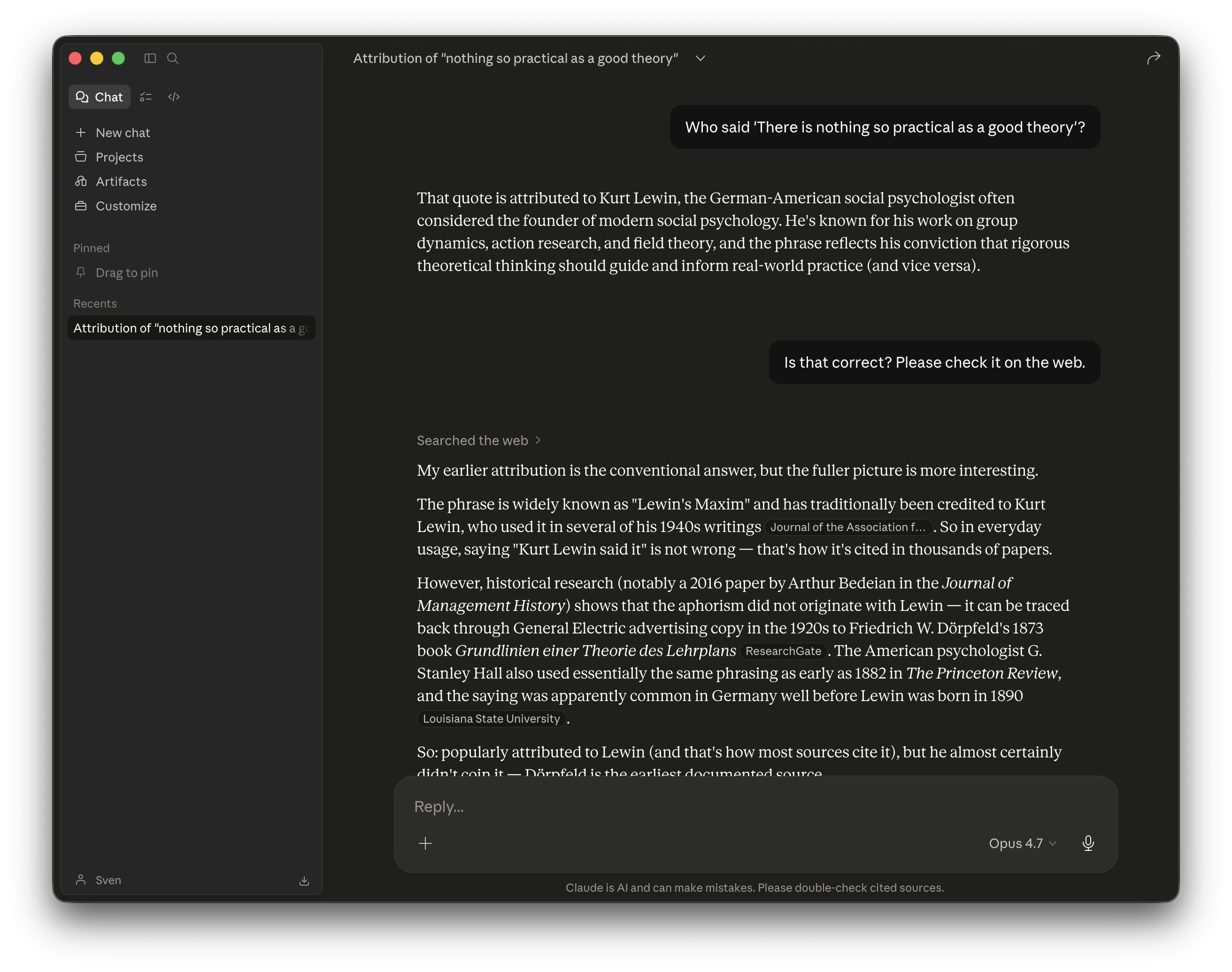
Special note: For health, safety, or legal questions, always double-check — even when Claude sounds confident. Claude isn't a doctor, not a lawyer, and not a tax advisor.
If You Know ChatGPT — What's Different?
I switched from ChatGPT to Claude back then because I simply liked Claude's answers better. I can't make that more concrete than that — it's gut feeling from daily use, not a benchmark. My questions got answers that felt "more right" with Claude, and the way Claude formulates things suits me better.
The difference is noticeable but not huge. If you get along well with ChatGPT, you'll get along with Claude quickly. A lot works the same way. If you want a conclusive recommendation on this, you won't find one from me — try it out and decide for yourself.
Bonus: Skills
Claude has a feature that isn't important for getting started, but I want to say a few words about it because it can become a nice tool later.
Skills are an extension mechanism. You can give Claude specialized capabilities that go beyond normal chatting. The analogy is an app on your smartphone: The operating system can do basic things on its own, and you install apps that take on specific tasks. It's similar with Claude — Skills take on specific tasks.
An example from my own daily practice: I wrote a Skill called /summarize-article. It does exactly what the name says — it takes a URL or a text, summarizes the article in a structured way, and saves the summary to my hard drive. What used to be a manual "open the text, read through, note the key points" becomes "send a command, done."
Important: You don't have to write any Skills yourself to use them. There are many existing ones you can simply activate. But as mentioned, that's dessert, not the main course. Start with normal chatting first.
Bonus: Cowork
Cowork is Anthropic's second tool that sits as its own tab inside the desktop app — and one that was deliberately built for non-developers with knowledge-work in their daily lives: researchers, analysts, people from legal, finance, or operations, who work a lot with documents, data, and files.
The difference from normal chat: In chat, you can upload files, Claude reads them, summarizes them or builds its answer on top of them — and can, within limits, also create files as an answer. Cowork goes one step further: It can execute multi-step tasks autonomously. You say, for instance, "Go through these twelve PDFs, sort them by category, and drop me a summary of each category." Cowork shows you its plan first, waits for your "yes," and then keeps working on its own — a kind of mini-colleague that doesn't just answer individual questions but takes on whole workflows.
Whether this is interesting for you depends on what you do. If your work involves a lot of document preparation, data research, or text analysis, Cowork is built for that. If you use Claude more like a private conversation partner (asking questions, looking things up, getting help with everyday tasks), you probably don't need Cowork — normal chat is enough.
Prerequisite: Cowork is included in the Pro plan and higher, not in Free. The tab only appears in the desktop app after the upgrade.
Bonus: Claude Code
Finally, the thing I use personally every day — and that I still don't recommend to you as a beginner: Claude Code.
Claude Code is an AI coding tool for developers. Originally built for the command line — that is, for the terminal, those black windows with blinking cursors where developers type. Meanwhile, you can also find Claude Code as a "Code" tab directly inside the Claude Desktop app — with a graphical interface instead of terminal input. My own setup is still the terminal variant. Claude Code works directly on your files: reads them, writes them, runs commands.
I use Claude Code as my main tool. In fact, I have several Claude Code windows open in parallel most of the day — so intensively that I need two company accounts to cover the capacity: a Team plan with a premium seat plus $200 extra usage per month, plus a Max-20 account. Both are paid for by my employer. This is mentioned here only so you can place why I'm bringing it up — I'm not a casual free-plan user.
For you, it looks different. Claude Code assumes you know your way around a terminal, that you understand files and folders, and ideally that you do some programming. If you're just starting out with Claude, this is definitely not the way. You don't need it just because I use it.
What Now?
The concrete next step: Go to claude.com/download, download the desktop app, and sign up for the free plan. Type a first question. Ask about something that's on your mind right now — an article that's too long, a decision you have to make, a product whose description you don't understand. See how Claude answers. Ask follow-ups when something seems off — and don't forget: "Is that correct? Please check it on the web."
So, to the friend who asked me in the sports hall — and everyone else who made it this far — that was the introduction. You don't need to know more than that for the start. The rest comes with time, all on its own.